> ## Documentation Index
> Fetch the complete documentation index at: https://docs.aide.app/llms.txt
> Use this file to discover all available pages before exploring further.
# Conversations
> The conversations page is where you can see the conversations Aide has seen
It consists of 4 sections:
1. **Filters -** You can filter conversations by Open, Sent, Detected (whether a topic has been detected), Not Detected (conversations where no topic was detected), and All. You can also look up individual conversations by ID.
2. **List of conversations** - a list of conversations.
3. **Conversation** - the thread of messages between the customer and the agent. The main benefit of the conversations page is it shows you conversations they way “Aide sees them”, e.g. what topics were detected (if any), which scenarios were executed, whether a draft was generated or not. More importantly, you can provide feedback on topics and scenarios and draft. To reiterate, you can see:
1. what **Topics** were detected or assign a topic, provide feedback (thumbs up or down when you click a topic).
2. which **Scenarios** were applied and provide feedback (thumbs up or down when you click a scenario).
3. if any **Drafts** were generated and provide feedback (thumbs up or down when you click draft).
4. **Context** - if the customer’s email address, phone number or order number is has an existing order or CRM record, it is retrieved and displayed on the right-side of the screen.
An example of the Aide conversations page. With a specific conversation inquiring about an order. You can see the order information retrieved from Shopify on the left.
An example of how feedback can be provided when “topic” is clicked. You click the thumbs up or down buttons and that trains Aide for future messages.
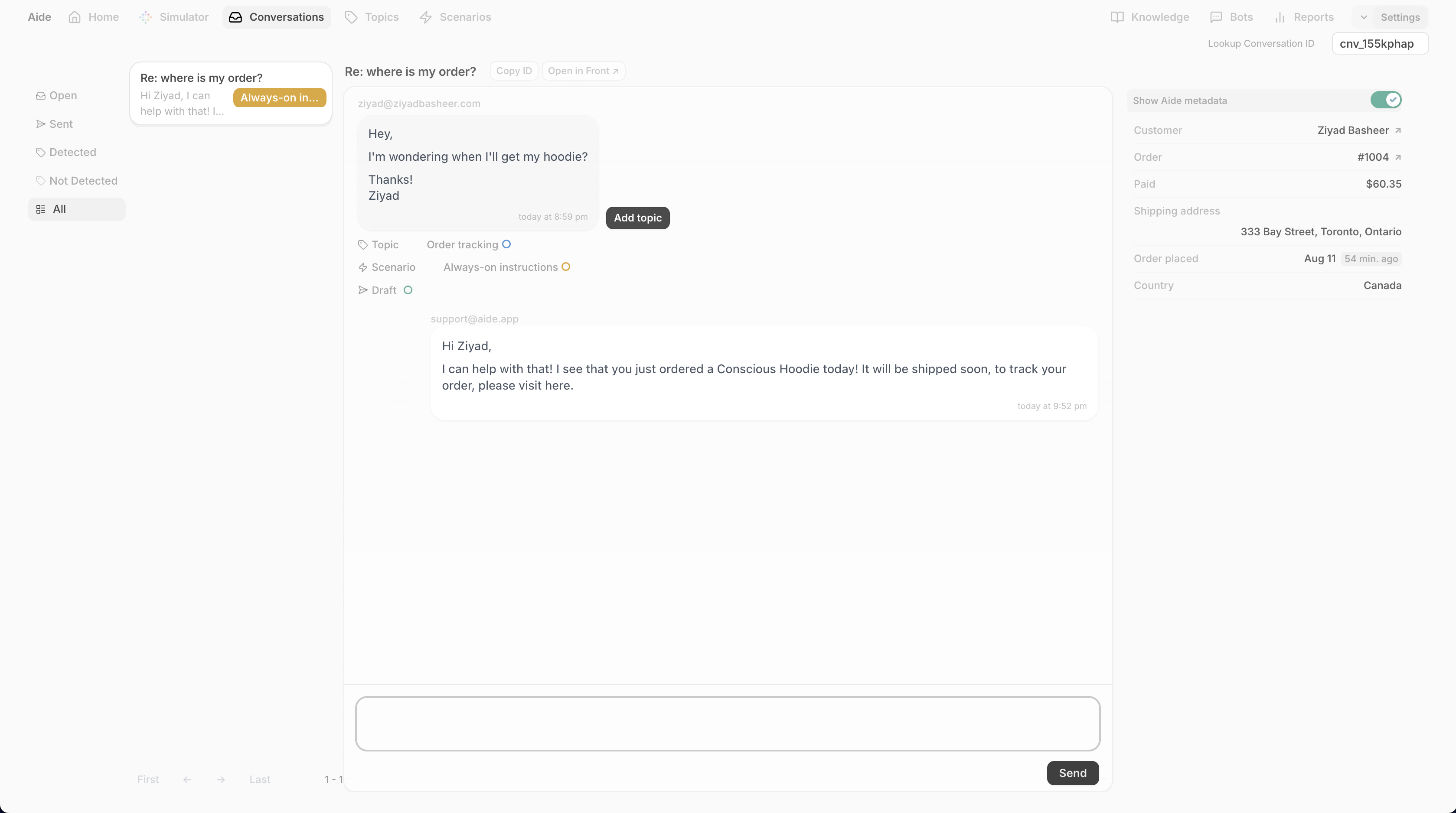 An example of the Aide conversations page. With a specific conversation inquiring about an order. You can see the order information retrieved from Shopify on the left.
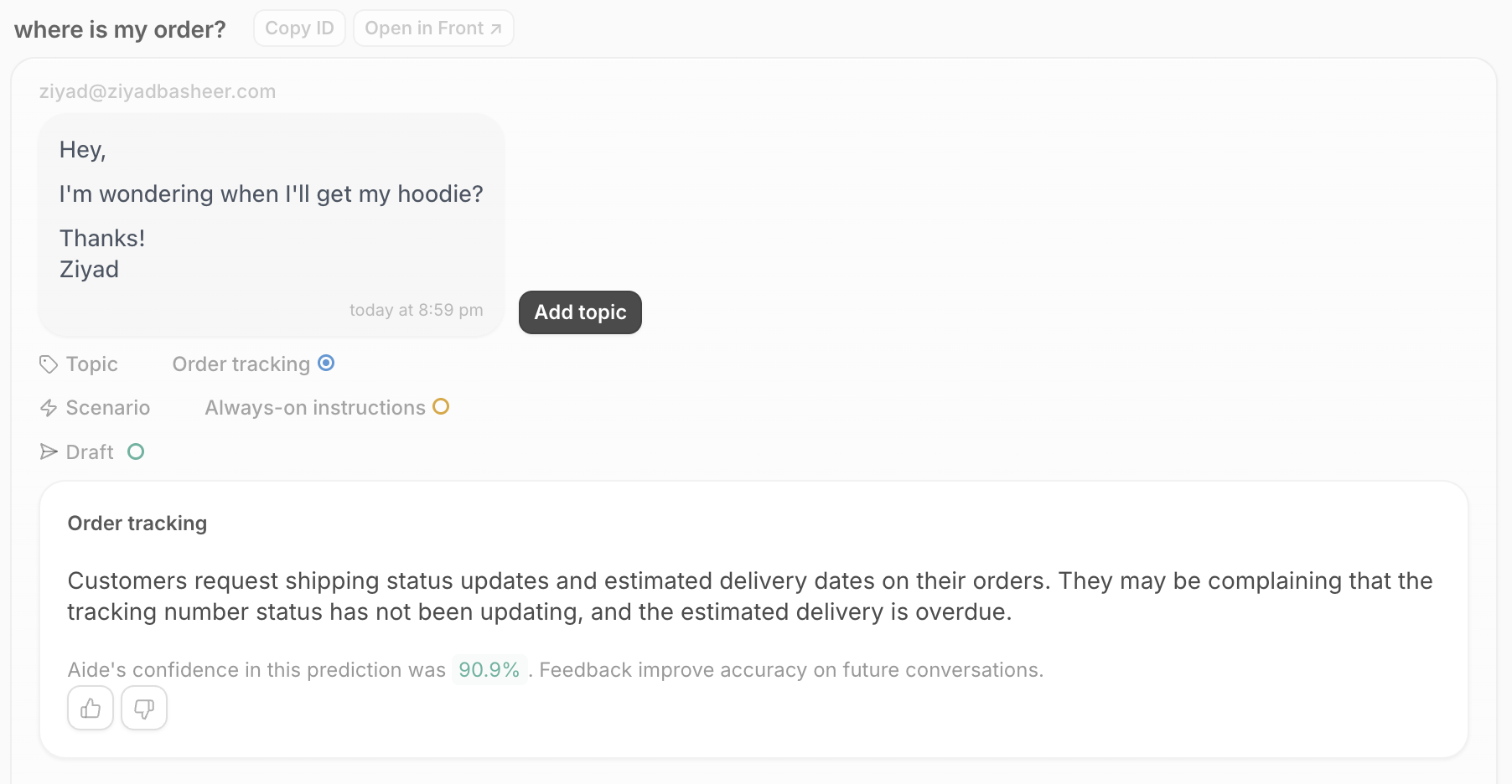 An example of how feedback can be provided when “topic” is clicked. You click the thumbs up or down buttons and that trains Aide for future messages.